Export/ Import Facility and Limit
PURPOSE
This document explains how to export facilities and their limits to an Excel file, update them in Excel, and import the file back into the system to update many facilities at once.
WHY IS THIS IMPORTANT?
Updating facilities one by one on the Amend Facility and Facility Limit screens takes time when many facilities need the same kind of change, for example a new limit amount from a new date, a revised margin or an extended maturity date. With Export/Import you can make all the changes in one Excel file and load them in one go.
Only facilities that already exist can be updated this way. To create brand-new facilities or limits, use the Import button on the New Facility and Facility Limit screens instead.
BEFORE YOU START
a) You need the access right 11096 Export Facility to export, and 11097 Import Facility Updates to import. Ask your system administrator to grant you the permissions if you do not have the access.
b) You can only import facilities for accounting centres on which you have booking rights.
c) Every facility that is changed by the import is set to Unapproved and must be approved again before it is used.
PROCEDURE
A. Export facilities and limits to Excel
1. From the main menu, click Set Up > Risk > Facility.
2. On the Facility screen, click the Ex/Import button.
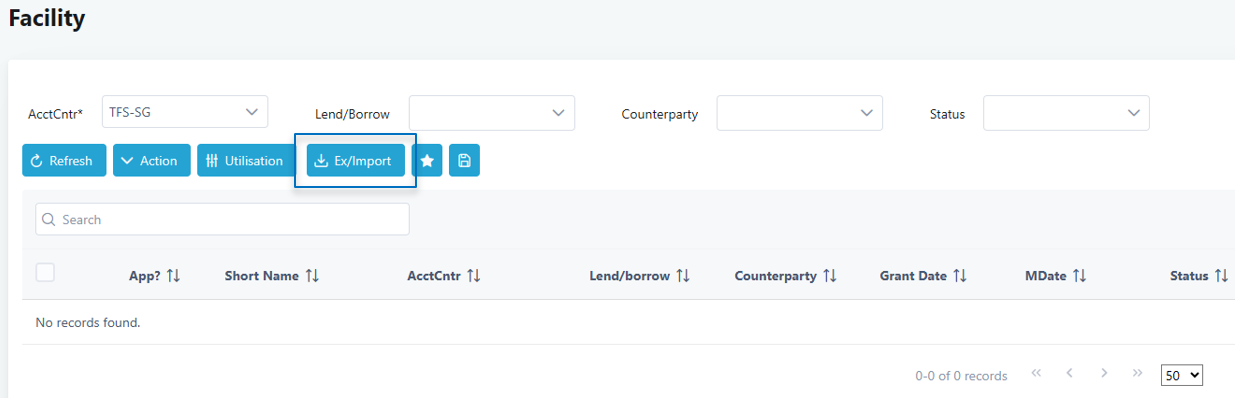
3. The Facility Import/Export screen appears. Tick the Export checkbox. The export filters will be shown.
4. Fill in the filters:
a) Acct Cntr* – the accounting centre or accounting centre group to export.
b) As At Date* – only facilities that are active on this date are exported (granted on or before this date and maturing after it). The limit exported is the latest limit in effect on this date.
c) Lend/Borrow* – Borrow, Lend or Trading facilities.
d) Counterparty (optional) – leave blank to export all counterparties.
e) Facility Type (optional) – leave blank to export all facility types.
Fields marked with * must be filled in.
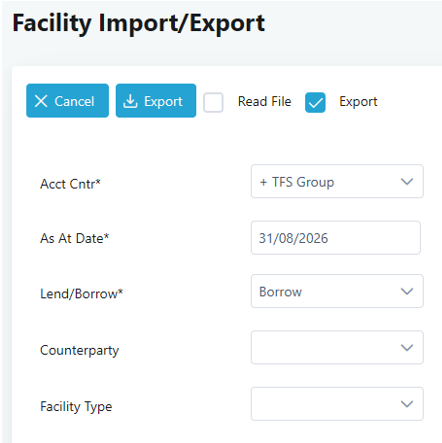
5. Click the Export button. An Excel file named Facility_Export is downloaded. Save it to your computer.
6. Open the file. Each row is one facility together with its current limit. The first row contains the column headings.


B. Update the Excel file
7. Change only the values you need to update, then save the file as Excel (.xls or .xlsx). The table below explains each column. Columns marked with * must not be left blank.
| No. | Column | Column |
|---|---|---|
| 1 | Facility Type* | Facility type as shown in the system. |
| 2 | Short Name* | Identifies the facility. Do not change. It must match an existing facility. |
| 3 | Acct Cntr* | Accounting centre short name. You must have booking rights on it. |
| 4 | Borrow/Lend* | Borrow, Lend or Trading. |
| 5 | Counterparty* | Counterparty short name. Must be different from the Acct Cntr. |
| 6 | Draw By Date | Date. Must be after the Grant Date and on or before the Maturity Date. |
| 7 | Maturity Date* | Date. Must be after the Grant Date. |
| 8 | Check Trade MDate? (Y/N) | Y or N. |
| 9 | Committed Y/N* | Y or N. |
| 10 | Status | Open, Freeze or Negotiating. If left blank, the status is set to Open. |
| 11 | Rate Type | Rate type as shown in the system. Blank or - means none. |
| 12 | Rate Basis | Rate basis as shown in the system. Blank or - means none. |
| 13 | Margin(%)* | Percentage, e.g. enter 1.25 for 1.25%. |
| 14 | Ann. Fee Rate(%)* | Percentage, e.g. enter 0.5 for 0.5%. |
| 15 | Guarantor | Guarantor short name (optional). |
| 16 | Trustee | Trustee short name (optional). |
| 17 | Trust Date | Date (optional). |
| 18 | Collateral Value | Free text (optional). |
| 19 | Description | Free text (optional). |
| 20 | Purpose | Free text (optional). |
| 21 | Other Info | Free text (optional). |
| 22 | With Effect* | Date the limit takes effect. Same date as exported = update that limit. A new date = add a new limit from that date. Must be on or after the Grant Date and before the Maturity Date. |
| 23 | Limit Ccy* | Limit currency code, e.g. SGD. |
| 24 | Limit Amount* | Limit amount. Cannot be negative. |
| 25 | Utilization Type* | Revolving, Single Draw or Multiple Draw. |
| 26 | Product* | One or more products separated by a semicolon ( ; ), e.g. Term Loan; Money Market. Each product can appear only once. |
| 27 | Sub Limit Ccy | Sub-limit currency for each product, in the same order as the Product column, separated by ( ; ). |
| 28 | Sub Limit Amount | Sub-limit amount for each product, in the same order as the Product column, separated by ( ; ). Cannot be negative. A currency is required for every amount entered. |
8. Please note the following rules before importing:
a) Do not add, remove or re-order columns, and keep the heading row.
b) Do not change the Short Name. The import updates existing facilities only; it cannot create a new facility.
c) The Grant Date is not in the file and cannot be changed by import.
d) Names (Acct Cntr, Counterparty, Guarantor, Trustee, Product, etc.) must match the names in the system.
e) Enter dates as Excel dates, not as text.
f) Example of a product list with sub-limits: Product = Term Loan; Money Market, Sub Limit Ccy = SGD; SGD, Sub Limit Amount = 5000000; 2000000. Leave both sub-limit columns blank if there are no sub-limits.
g) The products in the file replace the product list of that limit. To remove a product, delete it from the Product column together with its sub-limit currency and amount.
h) You can delete rows for facilities you do not want to change. Rows with no changes are ignored.
C. Import the updated file
9. Go back to the Facility Import/Export screen (Set Up > Risk > Facility > Ex/Import).
10. Tick the Read File checkbox. Click Choose File and select the Excel file you saved.
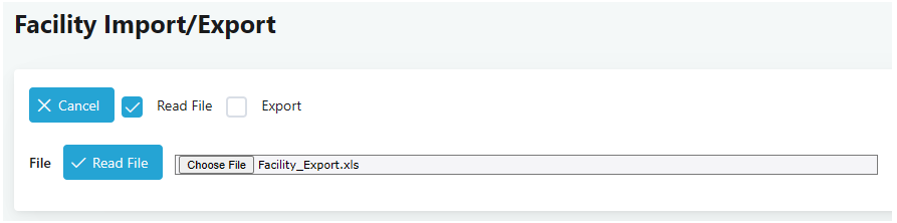
11. Click Read File. The system checks every row and shows the results in a table.
a) The Changed column shows Y for facilities that will be updated and N for facilities with no changes. Facilities marked N are not updated and stay as they are.
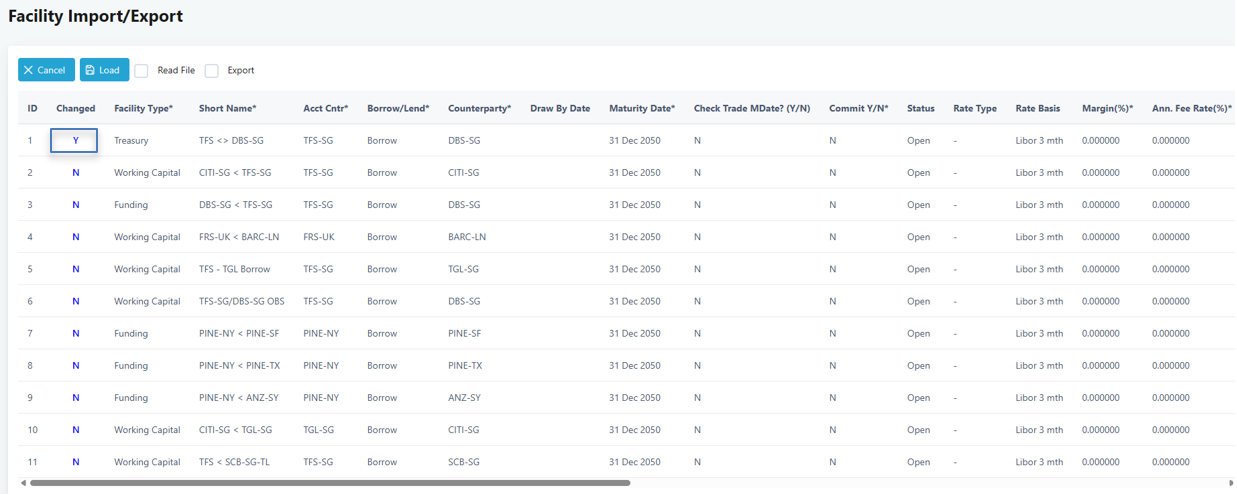
12. If there are errors, the File Errors box lists each row number with its problem, and the Errors column shows ERROR on those rows. The Load button will not appear until all errors are fixed. Correct the rows in the Excel file, save it, and repeat steps 10 to 11.
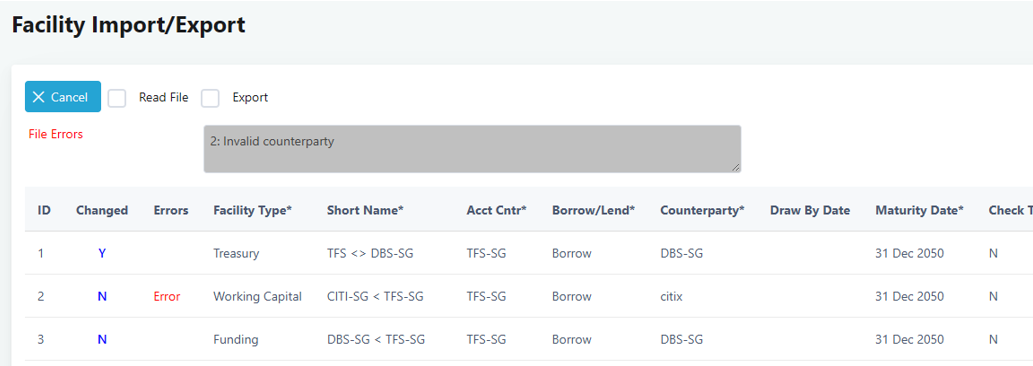
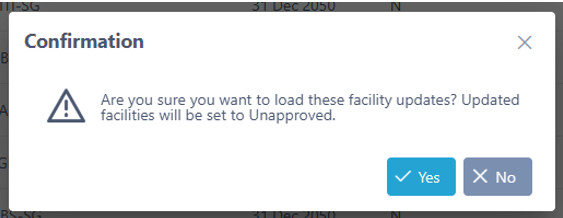
13. If there are no errors, click Load. A message appears: “Are you sure you want to load these facility updates? Updated facilities will be set to Unapproved.” Click Yes.
14. The message “Facilities updated successfully. Updated facilities are set to Unapproved pending approval.” appears when the load is complete.
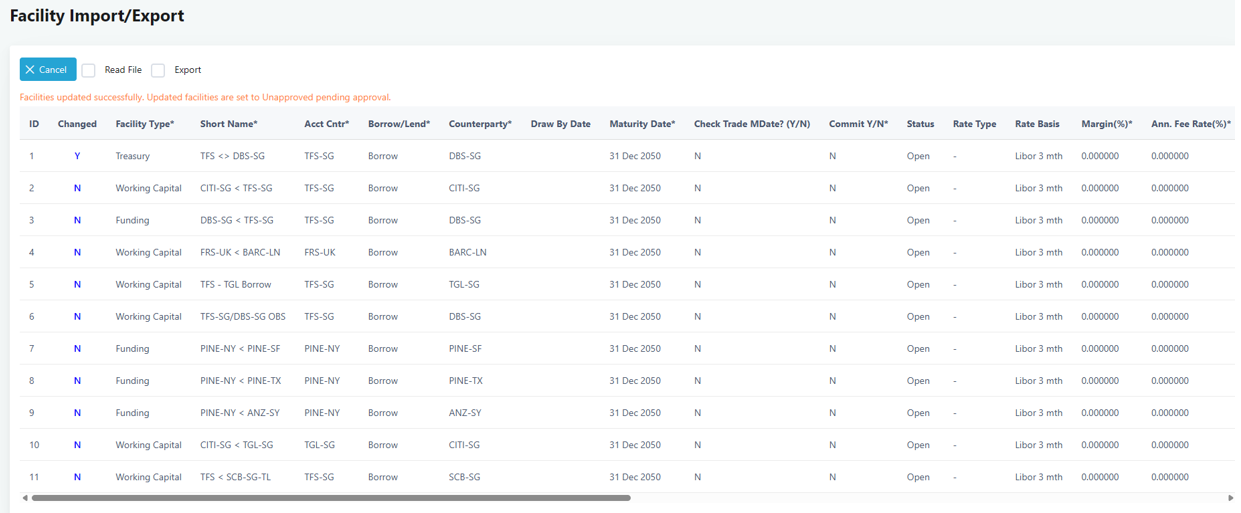
15. Click Cancel to return to the Facility screen.
D. Approve the updated facilities
16. On the Facility screen, select the Acct Cntr and click Refresh. Updated facilities show as not approved in the App? column.
17. A user with approval rights ticks the updated facilities and clicks Approve, then confirms.
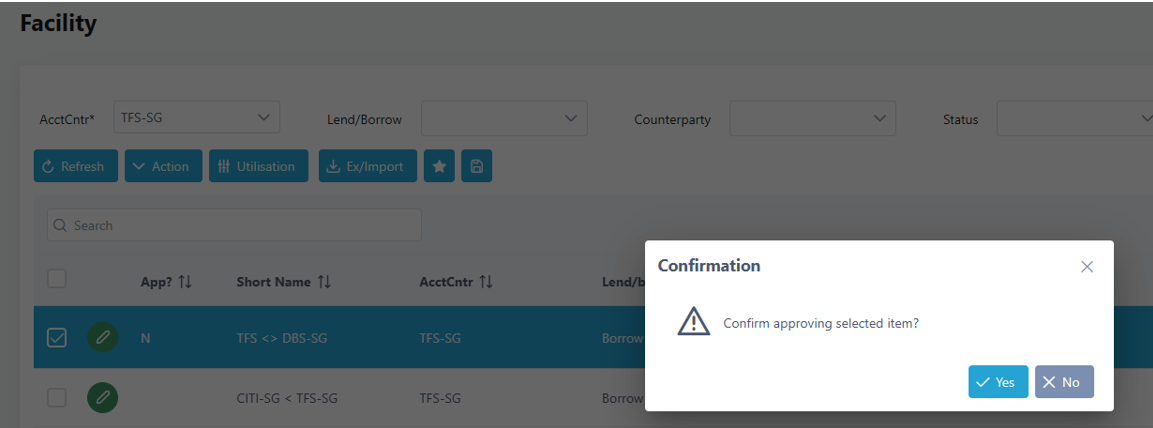
18. To check what was changed for a facility, click its Short Name to open the Amend Facility screen and click History.
FREQUENTLY ASKED QUESTIONS
FAQ01. Can I create a new facility using this import?
No. This import only updates facilities that already exist. A Short Name that is not found gives the error “Facility short name is invalid or does not exist”. Use the Import button on the New Facility screen to create new facilities.
FAQ02. How do I give a facility a new limit from a future date?
Change the With Effect date to the new date and enter the new limit details. The system adds a new limit from that date and keeps the earlier limit. If you keep the exported With Effect date, the existing limit is updated instead.
FAQ03. Why does the Changed column show N for a row I edited?
The values in the file are the same as the values already in the system, for example only the text case or number format was changed. Rows marked N are not updated and are not set to Unapproved.
FAQ04. Why is the Load button not shown?
Load only appears after Read File finishes with no errors. Fix every row listed in File Errors, save the file and click Read File again.
FAQ05. Why did a facility become Unapproved after the import?
Any facility changed by the import must be approved again, the same as when it is amended on screen. Facilities with no changes are not affected.
FAQ06. Why are some facilities missing from the export?
Only facilities that are active on the As At Date are exported, that is, granted on or before the date and maturing after it. Also check the Acct Cntr, Lend/Borrow, Counterparty and Facility Type filters.
RELATED INFORMATION
CHANGE HISTORY